• Welcome back! Thank you for being a part of this Traders Community. Let's discuss and share :)
    Selamat datang kembali! Trimakasih telah menjadi bagian dari Komunitas Trader ini. Mari berdiskusi dan berbagi :)

Suggestion ScreenShot Indicator

Where is screenshot, so many indicator that shared, but maybe useeful for some trader
will good if also explained about rules using indicator, it will really helpful
 
Hi,
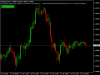
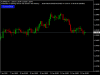
The indicator takes screenshots of the active terminal chart.

Available image saving options:
  1. At the opening of a new bar (candlestick) depending on the currently selected timeframe;
  2. After a certain time interval, e.g. every 10 minutes after indicator launch on a chart;
  3. When trade orders are opened/closed both by an Expert Advisor and manually;
  4. Each time when a user clicks the "Screeshot" button.
Indicator Parameters
Settings Screenshot time
  • Start Time (hh:mm) - sets the start time of indicator work.
  • End Time (hh:mm) - sets the end time of indicator work.
If both value = 0 or Empty, the indicator work around the clock.

Auto Screenshot Settings

  • Screenshot New Bar - if True, takes screenshots on each new bar (candle).
  • Screenshot Interval (minutes) - if a nonzero value is specified, it takes screenshots after a certain time interval after Start Time.
Open/Close Orders Screenshot Settings

  • Orders Type - take screenshot when orders are opened/closed by trading type: Manual, Auto, Both.
  • ScreenshotSymbol - setting to saving Open/Close images for current pair or all traded pairs.
  • Screenshot Open Orders - take screenshots when opening an order.
  • Screenshot Close Orders - take screenshots when closing an order.
  • Send Open/Close Mail - send an e-mail when an Expert Advisor opens/closes trades (if configured in the terminal settings).
Comments/Button settings
  • Show Comments - show all indicator comments in the journal, on a chart and screenshots.
  • Comments Position - set the corner of the chart to show comments.
  • Notification Language - set comments language: English or Russian.
  • Screenshot Button - show screenshot button "Screenshot" (three types) for manual work.
  • Button Position - set the corner of the chart for the "Screenshot" button.
  • Button Distance X - "Screenshot" button distance from the corner along the X axis.
  • Button Distance Y - "Screenshot" button distance from the corner along the Y axis.
ScreenShot Size
  • Width (X pixels) - image width along X in pixels.
  • Height (Y pixels) - image height along Y in pixels.
Other settings
  • CreateFolder - create folders in the terminal root directory to store
  • Set Picture Name - five variants of saved images names according to the sequence: Symbol, TF, Screenshot Type, Date and Time.
  • Image_Format - type of file format for saving images: gif, png, bmp.
 

Attachments

  • 1.png
    1.png
    23.3 KB · Views: 1,319
  • 2.png
    2.png
    18.5 KB · Views: 1,166
It's a good software where we could screen shot our trading platform with friends as sharing or tutorial. Thanks.
 
Back
Top